Reliable Sync with System Cron
CelerSearch keeps your search index up to date in the background. That background work — like most scheduled tasks in WordPress — runs on WP-Cron, and WP-Cron only fires when someone visits your site. On a busy store that's fine. On a quiet site, edits can take a long time to show up in search.
This guide shows how to replace WP-Cron with a real system cron so syncing happens on a fixed schedule, no matter how much traffic you get.
Why WP-Cron can be unreliable
WP-Cron isn't a true scheduler — it's checked on page loads and runs due tasks then. If nobody visits for an hour, nothing scheduled runs for an hour. A real system cron runs on a fixed interval, independent of traffic, so queued index updates are processed promptly.
How syncing depends on WP-Cron
CelerSearch doesn't schedule indexing on WP-Cron directly. Instead, real-time edits (new, updated, and deleted content) are queued through Action Scheduler and processed in the background — see Real-time Sync. But Action Scheduler's queue runner is itself triggered by WP-Cron. So the practical rule is simple:
- Keep WP-Cron running reliably → queued index updates are processed promptly.
- Let WP-Cron stall → edits sit in the queue until the next time cron happens to run.
The steps below make WP-Cron dependable, and add an optional nightly full re-sync as a safety net.
Step 1 — Turn off WP-Cron's on-visit behavior
Add this to your site's wp-config.php, above the /* That's all, stop editing! */ line:
define( 'DISABLE_WP_CRON', true );
This stops WordPress from trying to run cron on every page load. You'll trigger it from a real cron instead (Step 2).
Always pair Step 1 with Step 2
DISABLE_WP_CRON on its own means scheduled tasks never run. Only add it together with a system cron that runs WordPress cron on a schedule.
Step 2 — Run WordPress cron from a system cron
Add a cron job that fires every few minutes. If you have WP-CLI (most managed and cPanel hosts do), this is the cleanest option:
*/5 * * * * cd /home/USER/public_html && wp cron event run --due-now >/dev/null 2>&1
No WP-CLI? Hit wp-cron.php over HTTP instead:
*/5 * * * * curl -s "https://example.com/wp-cron.php?doing_wp_cron" >/dev/null 2>&1
Either one processes the Action Scheduler queue, so queued index updates go out on schedule. Every 5 minutes is a good default — lower it to */1 if you want near-instant updates.
Run the queue directly
If you'd rather drive the sync queue without going through WP-Cron at all, Action Scheduler ships its own WP-CLI runner:
*/5 * * * * cd /home/USER/public_html && wp action-scheduler run >/dev/null 2>&1
Step 3 — (Optional) Schedule a nightly full re-sync
A periodic full rebuild is a good safety net — it catches anything a missed queue run might have skipped. Run it once a day, off-peak:
0 3 * * * cd /home/USER/public_html && wp celersearch reindex --all >/dev/null 2>&1
Full vs. incremental
wp celersearch reindex --all rebuilds every index from what's currently in WordPress. It's a complement to real-time sync, not a replacement — keep Step 2 for timely incremental updates. Add --clear to empty each index before rebuilding (search is briefly sparse while it repopulates), or target one index with wp celersearch reindex <id-or-slug>. See the WP-CLI reference.
Setting it up in cPanel
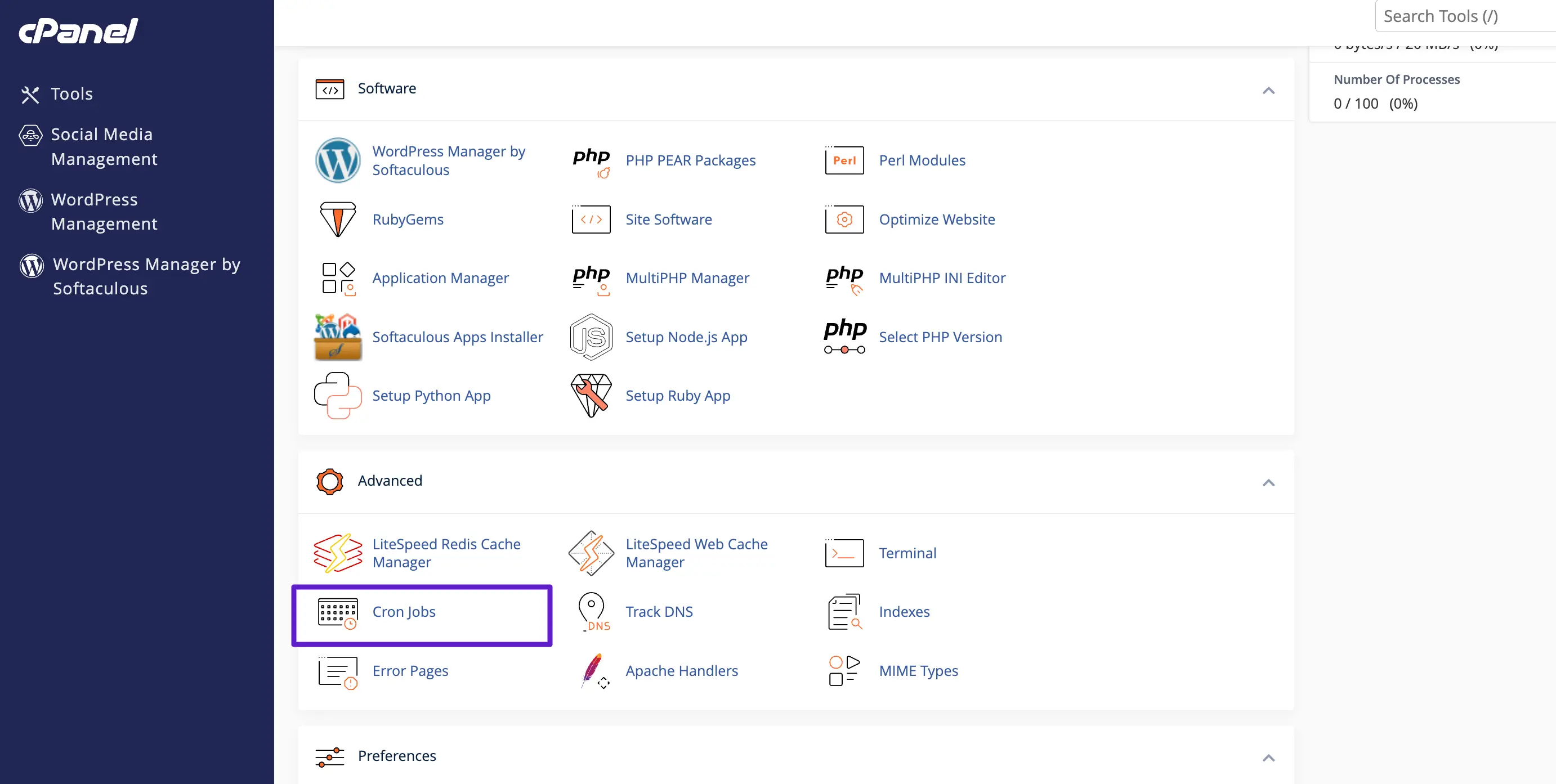
Most shared hosts use cPanel. From the cPanel home, scroll to the Advanced section and open Cron Jobs.
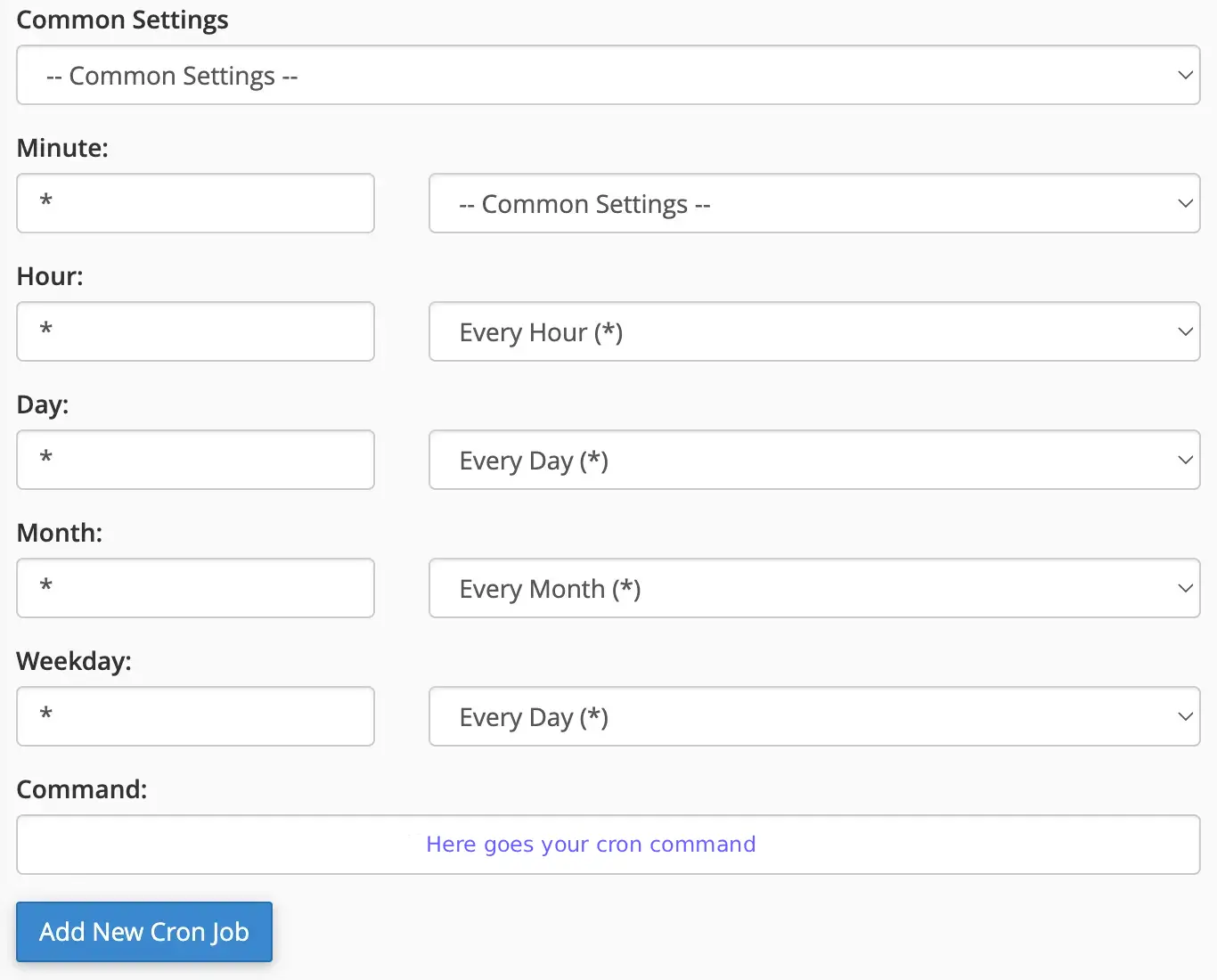
Under Add New Cron Job, pick a schedule (use the Common Settings dropdown for presets like “Once Per Five Minutes”), paste your command into the Command field, and click Add New Cron Job.
Verifying it works
- Tools → Scheduled Actions (filter by the
celersearchgroup) — pending actions should clear on schedule instead of piling up. - CelerSearch → Settings → Sync — the reliability notice and pending-queue table live here; a stuck-action count is a sign WP-Cron isn't running.
- Make a quick edit to a post or product and confirm it appears in search within your cron interval.
Next steps
- Real-time Sync — how observers and the queue keep content in sync
- WP-CLI reference — all
reindexoptions